Standalone Windows trainers and Cheat Engine tables, with clear instructions and straightforward downloads.
Free to download. Optional support. No sign-up required.
Available trainers
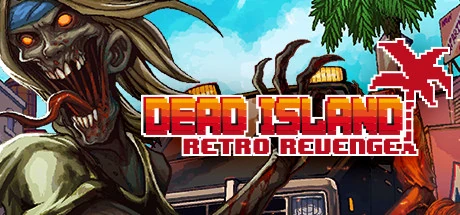
Dead Island Retro Revenge
Windows trainerCheat Engine tableFree
Infinite health, unlimited magic, score multiplier protection, and super weapon and pickup weapon refills.
A little help getting started
Choose the standalone trainer or follow the Cheat Engine guide, one step at a time.
Have a game in mind?
Requests are welcome. This is a spare-time hobby, so I may or may not take them on.
Dead Island
Retro Revenge
Choose the version that suits you. Both are free. Use one version at a time.
Standalone Windows trainer
Extract the ZIP and open the trainer. No Cheat Engine or separate .NET installation required.
64-bit Windows · portable app
Cheat Engine table
For players who prefer using Cheat Engine. Open the CT file and follow the instructions below.
Requires Cheat Engine · CT file
Included features
Infinite Health
Unlimited Magic, using the game's normal E key
Keep Score Multiplier
Super Weapon Refill with F6
Temporary Pickup Weapon Refill with / and its music fix
Compatibility: tested with the Steam executable used for this release. Full build details and file checksums will accompany the published downloads.
Getting started
Pick your download. Follow the steps.
Choose whichever version suits you. The standalone trainer is the simplest way to get started and doesn’t require Cheat Engine. If you already use Cheat Engine, you can download the table instead. Both are free. Use one version at a time.
Using the standalone Windows trainer
A ZIP is a compressed package containing the trainer. You’ll need to extract, or “unzip”, it before running the app.
Download the trainer.
On the ModMutt website, find the game you want a trainer for and click Download Windows ZIP. Wait for the download to finish.
Find your download.
Press Windows key + E to open File Explorer, usually shown as a yellow folder icon. Select Downloads on the left. Unless you chose somewhere else when downloading, your ZIP should be there. Its icon may look like a folder with a zip, or show your installed archive program.
Extract the ZIP.
Right-click the downloaded file and select Extract All. Leave the suggested location as it is, tick Show extracted files when complete if available, then click Extract. This creates a normal folder containing the trainer.
Open the trainer.
In the extracted folder, double-click the trainer application. Its filename ends in .exe, although Windows may hide that ending. Open it from the extracted folder, rather than from inside the ZIP.
Connect to your game.
Start the game, then return to the trainer and click Connect to game. Wait for it to confirm that it has connected.
Choose your features.
Enable the features you want, then return to the game. The trainer’s download page explains its controls and hotkeys. Use either the standalone trainer or its Cheat Engine table, one at a time.
Finish your session.
Click Disconnect or close the trainer normally when you’re finished.
Can’t find your download?
Press Ctrl + J while your web browser is open to show your downloads. Find the trainer ZIP, then click its folder icon or Show in folder. This opens the folder where the ZIP was saved.
Already using 7-Zip?
You can use it instead of Extract All. Right-click the ZIP, open the 7-Zip menu and choose the option to extract into its own named folder. On Windows 11, you may first need to select Show more options. Avoid Extract Here if you want to keep the trainer files together.
Removing the trainer
This is a portable app, so there’s no installer to uninstall. Disconnect and close the trainer first. Then delete its extracted folder, the downloaded ZIP and any shortcuts you created. This removes the trainer; it does not undo progress or changes already saved by the game.
Using a Cheat Engine table
A Cheat Engine table is a .CT file containing the cheats. You need the separate Cheat Engine program to open and use it.
Install Cheat Engine.
Visit the official Cheat Engine download page and choose the Windows download. Open the downloaded installer and follow its instructions. Read each installation screen and decline any optional software you don’t want. If the link stops working, the official website is www.cheatengine.org; open it and select Downloads. The official site acknowledges that its public installer can include additional software recommendations.
Download the table.
On the ModMutt website, find your game and click Download Cheat Engine CT. Find the downloaded file in Downloads, or press Ctrl + J in your browser and select Show in folder. A CT file does not need extracting unless it was supplied inside a ZIP.
Start your game.
Launch the game normally and leave it running, preferably at its main menu. The game must be running before you try to select its process in Cheat Engine.
Open the table.
Double-click the downloaded CT file. If it doesn’t open in Cheat Engine, open Cheat Engine first, press Ctrl + O, select the CT file and click Open. The table’s cheat entries should appear in the lower part of the window.
Connect Cheat Engine to the game.
Click the small computer/monitor icon near the top-left corner of Cheat Engine. In the process-selection window, select your game and click Open. Choose the game itself, rather than Steam or another launcher. Each ModMutt trainer page will give the correct process name; for Retro Revenge, it is DeadIslandRetroRevenge.exe. If the game isn’t listed, check that it is running, then close and reopen the process-selection window.
Keep the loaded table.
If Cheat Engine asks “Keep the current address list/code list?”, click Yes. This keeps the cheat entries you loaded while connecting to the game. Clicking No clears that list; if that happens, reopen your CT file. This instruction applies to that particular prompt, rather than every message Cheat Engine displays.
Enable your chosen cheats.
Follow the table’s instructions and tick only the entries intended for activation. If an entry expands to show more options, read those labels before selecting anything. Entries labelled DO NOT TICK must remain unticked. Do not delete or edit them: they are supporting parts of the table, rather than cheats to activate manually.
Use the listed controls.
Return to the game and use the hotkeys described on its ModMutt page. Keep Cheat Engine open while using the table. Do not run the standalone trainer at the same time. After restarting the game, reconnect Cheat Engine and follow the table’s activation instructions again.
Changing a table hotkey
For hotkeys assigned through Cheat Engine’s normal table controls:
Right-click the cheat entry and choose Set/Change hotkeys.
Select its existing hotkey, then click Edit Hotkey.
Clear the old key combination using the hotkey window’s clear control, then click the key-entry box and press your preferred key or combination.
Keep the existing action and value unchanged, so the shortcut still performs the same cheat.
Click Apply, then OK.
Use File → Save As to save a personal copy of the CT file with your changes.
Choose keys that don’t conflict with your game controls or other shortcuts. Normal table hotkeys are saved with the table.
Hotkeys programmed inside a script may need different instructions.
If no existing hotkey appears in this window, don’t create a replacement blindly. Its trainer page should explain whether it can be changed.
Finishing and removing the table
When finished, turn off the cheats you enabled, following any shutdown instructions supplied with the table. Then close the game and Cheat Engine.
To remove the table, delete its CT file, any personal copies and its downloaded ZIP if applicable. The table has no separate uninstaller. Deleting it does not undo changes already saved by the game.
Uninstalling Cheat Engine
Close Cheat Engine first, then:
Windows 10:
open Start → Settings → Apps → Apps & features, select Cheat Engine, then Uninstall.
Windows 11:
open Start → Settings → Apps → Installed apps, find Cheat Engine, click the three dots beside it, then Uninstall.
Follow the uninstaller’s instructions. You can also delete the downloaded installer and unwanted CT files afterwards. Other programs installed separately have their own uninstall entries.
Use one trainer version at a time. Follow the instructions supplied with your chosen download.
Requests & feedback
Got a suggestion?
Request a game, report a trainer problem, or share your thoughts. No account needed.
This is a spare-time hobby. I may or may not take a request on, and there are no promised completion dates. Donations do not buy priority.
See what has already been requested and which requests have been completed. You can request a game already listed.
Community requests
Requested games
A listing means a request has been received. It does not mean a trainer is planned or promised.
You’re welcome to request a game already listed. The count shows accepted requests, rather than a verified number of different people. It helps me understand interest, but doesn’t determine which trainers I make. Donations do not buy priority.
Already requested
Alphabetical order
No requests listed yet.
Completed requests
Most recently completed first
No completed requests listed yet.
About ModMutt
One person's hobby. Free for you to enjoy.
I'm Jenson. I make game trainers in my spare time and share them here, alongside Cheat Engine tables and straightforward instructions.
The official ModMutt website is modmutt.uk. Published releases will identify that address and include download checksums.
Supporting the hobby
Every trainer is free. If you'd like to support ModMutt, that's entirely optional. Downloads are the same whether you donate or not.
Optional support
Support ModMutt
All ModMutt trainers are free. If you enjoy using them and would like to support the hobby, thank you. Support is entirely optional.
Through Ko-fi
If you prefer to support ModMutt through Ko-fi, use the link below.
Prefer to support ModMutt directly? Choose a payment option below. You choose the amount on the payment provider's secure page.
PayPal
Support ModMutt through PayPal.
Not available yet.
Card, Apple Pay or Google Pay
Pay by debit or credit card through Stripe. Apple Pay and Google Pay appear at checkout when supported by your device and browser.
Not available yet.
Downloads are the same whether you support ModMutt or not. Support does not buy priority for game requests or guarantee that a trainer will be made.
Payments are handled by Ko-fi, PayPal or Stripe. This website does not collect or store your payment details, name or email for support payments. The providers keep transaction records and may share some supporter information with me through their services.